Turn speech into editable text
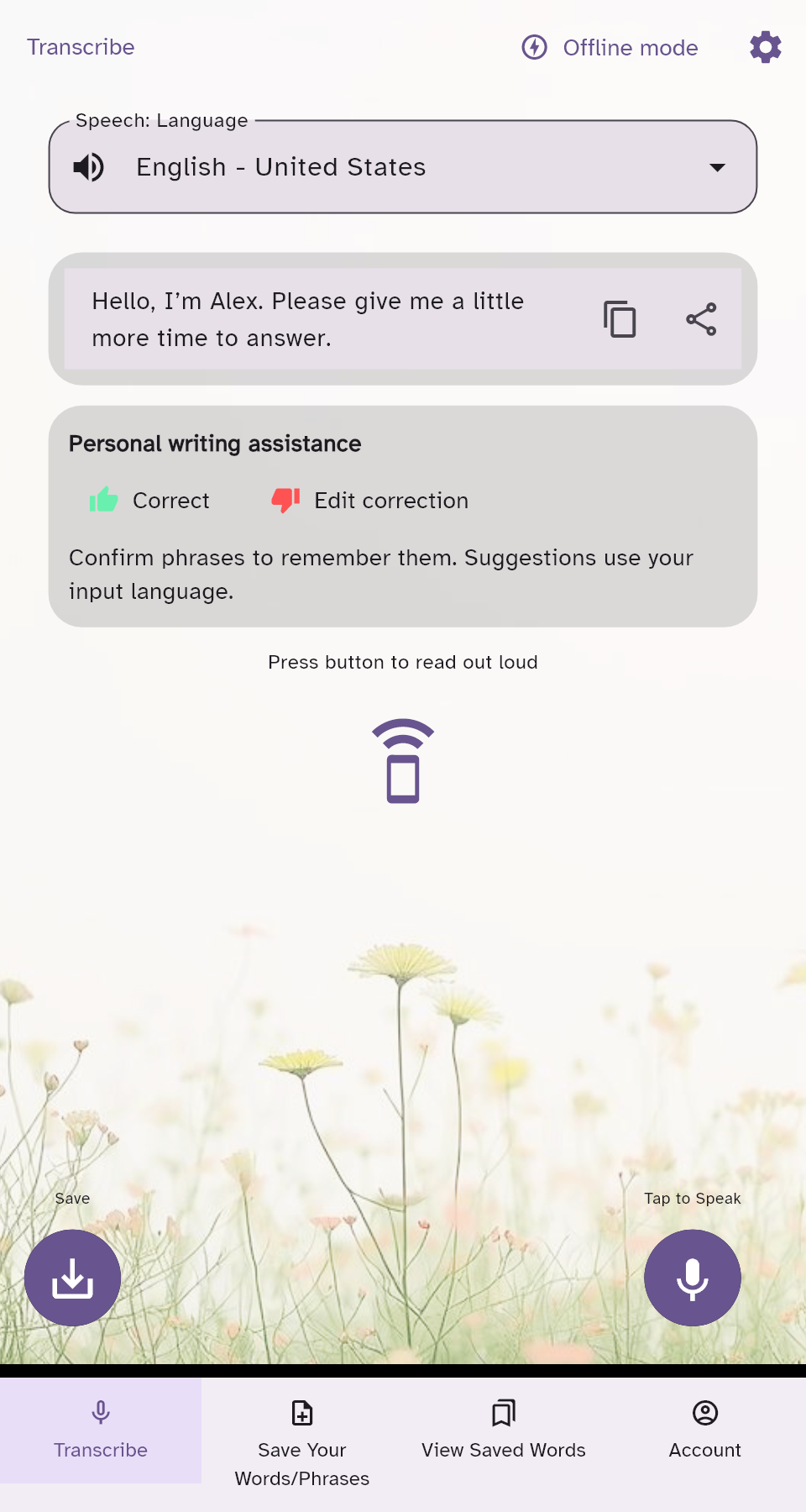
Record a message, stop recording, then review the words. Correct names or spelling before you use the text.
 CommunicateIt!!!
Communication, on your terms
A little more time. A familiar phrase. A different way to say it.
CommunicateIt!!! helps you turn speech into editable text, play messages aloud, and keep everyday phrases close.
You choose the message and when to share it.
Cloud features need an internet connection.
Different choices for different parts of your day
Choose the language for buttons, labels, and guidance.
Language and regional choices for recorded speech, plus automatic detection.
Across 60+ output language and regional options for spoken messages.
Catalog snapshot from September 22, 2026, recorded in our company brand guide. Counts include regional variants and interface aliases; they are not counts of distinct languages. Catalogs can change, and not every option has been individually tested. Check the current choices in the app.
The person comes first
When speaking is difficult or not your preferred option, prepare a message in a way that works for you. Your thoughts stay yours to review, change, and share.
Tools you can make your own
Use one tool or combine a few. You decide what helps in the moment.
Record a message, stop recording, then review the words. Correct names or spelling before you use the text.
Type or paste what you want to say. Choose an output language and a supported Google Cloud voice for playback.
Save a phrase under a title you recognize. Search your saved words, expand a tile, and edit or play the message.
Confirm personal corrections and preferred spellings. Review phrase suggestions and choose the words that fit.
Set your interface language, voice input language, and voice output language independently.
Adjust text size, fonts, spacing, color themes, backgrounds, and light or dark mode to suit your preferences.
At your own pace
Prepare before a conversation, or find the words when you need them.
Explore the appType, paste, record your speech, or open a saved phrase.
Edit the text and choose the language and voice you want to hear.
Speak the message aloud. Save useful phrases for another conversation.
Independent language choices
Changing the app’s buttons and labels does not have to change your speech settings.
Small moments matter
Before an appointment or a conversation, save a message under a title that makes sense to you.
Illustrative messages, not testimonials. Tap a title to read the phrase.
Please give me a little more time to answer.
I prefer to type my message. I will let you know when I am ready.
I have a few questions saved that I would like to discuss.
Open the Beta web app, create an account, and follow the email verification and setup steps. Start with a typed message, review it, and choose to play it aloud.
The current recording mode returns a transcript after recording stops. It is not live word-by-word transcription. You can edit the returned text before playback.
No. Interface text, speech recognition, translation, and spoken voices have different language catalogs. The app shows the available choices for each feature, including regional options.
Cloud speech recognition, translation, voice generation, and account syncing require internet. The Android offline tools require compatible devices and downloaded language models or voices. Offline speech is not available in the web app.
The web app is currently in Beta. Mobile store releases and paid subscriptions are being prepared; they are not being advertised here as available purchases. Contact us for Android testing information.
CommunicateIt!!! supports people who find speaking difficult, tiring, uncomfortable, or simply prefer another way to express a message. It is a text-focused tool; individual reading, typing, and support needs vary.
Built around your preferences
Explore remembered corrections, independent language choices, and your own phrase collection. Discover the features.
See reading, voice, and navigation controls, plus optional spoken guidance. Explore accessibility.
Compare Basic and Advanced, monthly cloud allowances, and the planned 14-day trial. View plans and prices.
Your next message
Try a message, explore a voice, and tell us what would make the experience work better for you.
Open CommunicateIt!!!Currently in Beta. Features may change as the app develops.